Why it matters
Your GitHub profile is your developer identity. But GitHub fills it with sections you never chose: algorithmically selected repositories you would never pin yourself, achievement badges nobody clicks, a year selector that takes up an entire column, a verbose activity feed below your contribution calendar.
For developers who care about every detail of their online presence, that lack of control is the frustration. You want what you decided to show to be what visitors see — nothing added by an algorithm, nothing competing with your actual content.
GitHub Profile Cleaner is a free Chrome extension that gives you a toggle for every one of those sections. Remove what you did not ask for. Keep what matters. Changes apply instantly, no page reload, no account required.
Before and after
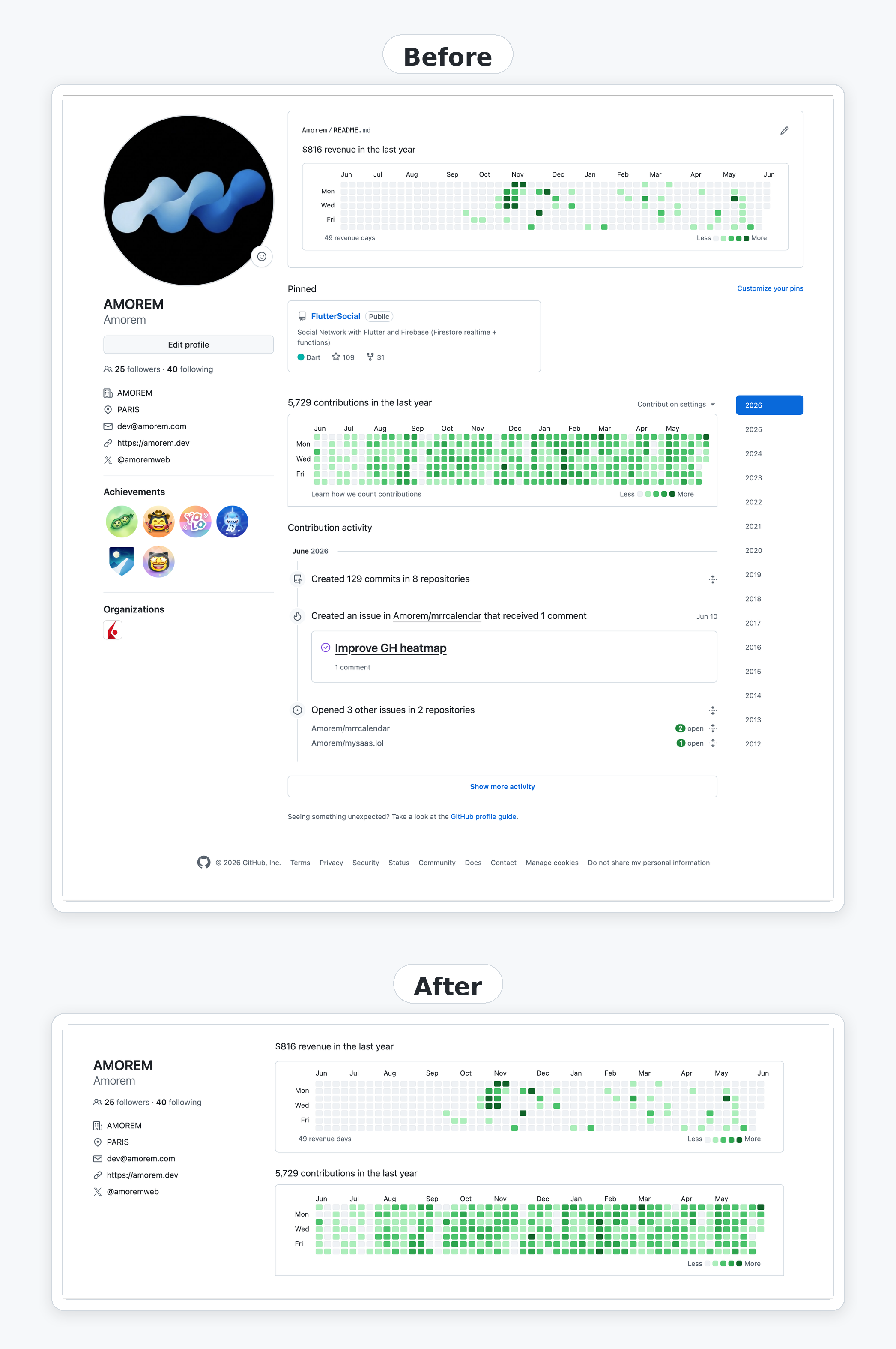
GitHub added all of this. You never asked for any of it.
Achievement badges from campaigns you forgot. A year selector taking up a full column. A verbose activity feed below the contribution graph narrating commits you already made. Algorithmically picked repositories placed above the ones you chose. Organizations block. Footer. Edit button visible on every profile you visit, not just your own.
One extension removes it — all of it, or exactly the pieces that bother you. Ten independent toggles. Everything reappears the moment you flip one back.
Install for free
Get GitHub Profile Cleaner on the Chrome Web Store — free, ~26KB, no account required.
Click Add to Chrome. The extension activates immediately on any GitHub profile page.
The popup has three buttons at the top: the eye icon to choose what to hide, the pin icon to choose where it applies, and the power button to pause or resume the extension entirely.
What you can remove
Click the eye icon to open the "What to hide" tab. Ten sections are independently toggleable:
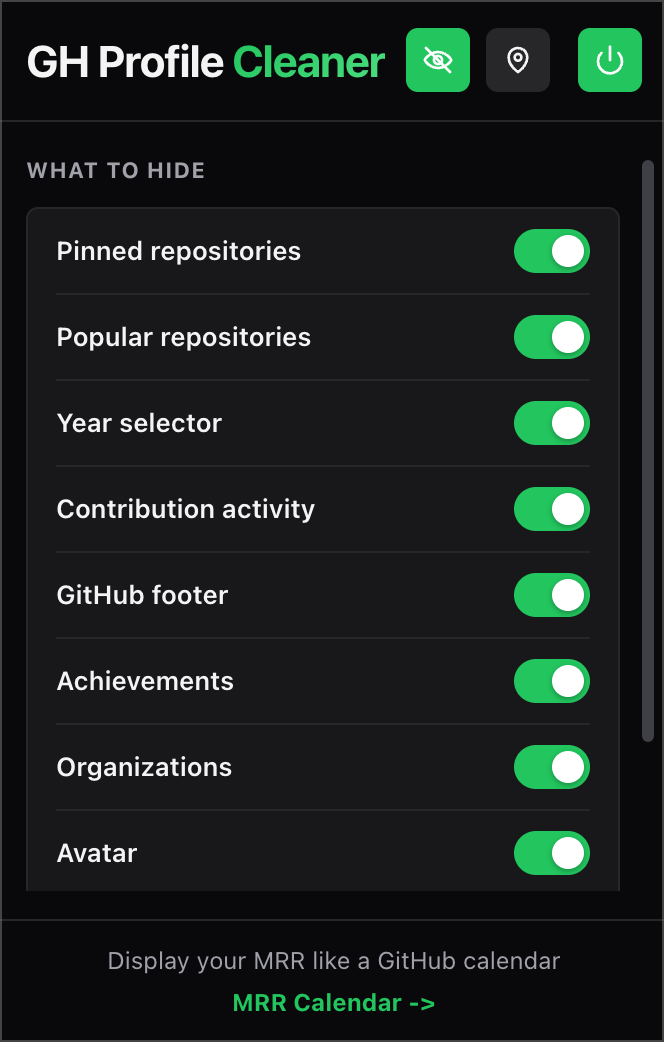
| Section | What it removes |
|---|---|
| Pinned repositories | The repos you manually pinned |
| Popular repositories | The repos GitHub picks algorithmically |
| Year selector | The year dropdown above the contribution calendar |
| Contribution activity | The verbose activity feed below the calendar |
| GitHub footer | The footer at the bottom of every GitHub page |
| Achievements | Arctic Code Vault, Mars Helicopter, etc. |
| Organizations | The org memberships block in the sidebar |
| Avatar | Your profile photo |
| Edit profile button | The "Edit profile" button and link |
| Profile README | Your README section |
Each toggle applies instantly — everything reappears the moment you switch it off.
Where it applies
Click the pin icon to choose which profiles are affected.
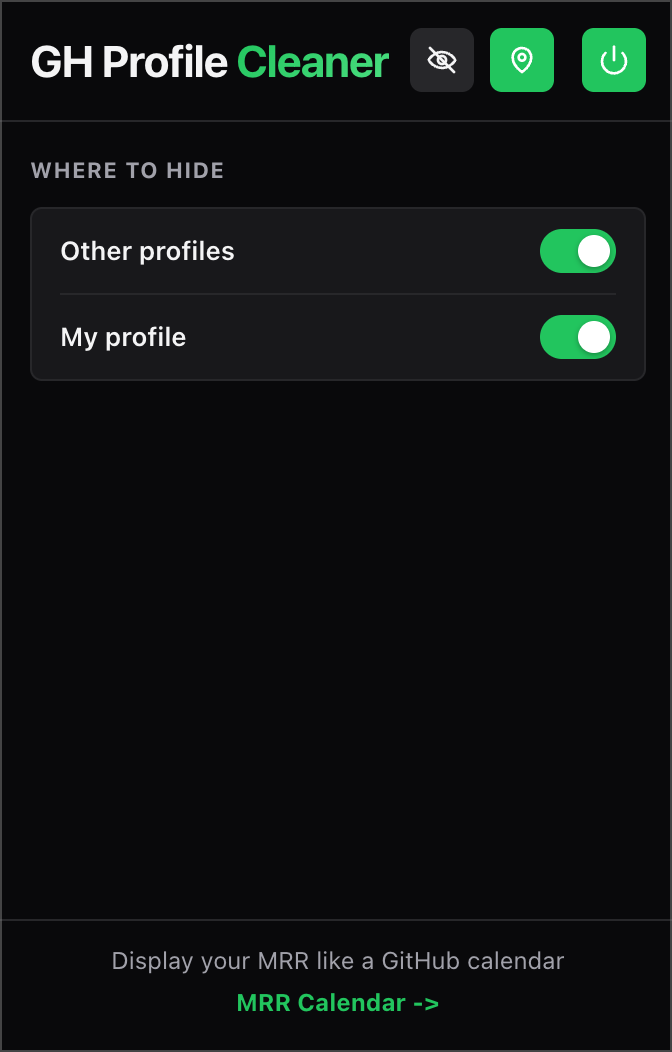
- Other profiles — cleans up any GitHub profile you visit, not just your own
- My profile — applies the same settings when you view your own page
Both are on by default. Turn off "Other profiles" if you want to keep other people's profiles untouched while browsing.
Pause and resume
The power button at the top right pauses the entire extension in one click. Every section reappears immediately — all your per-toggle settings are preserved. Click it again and everything hides back.
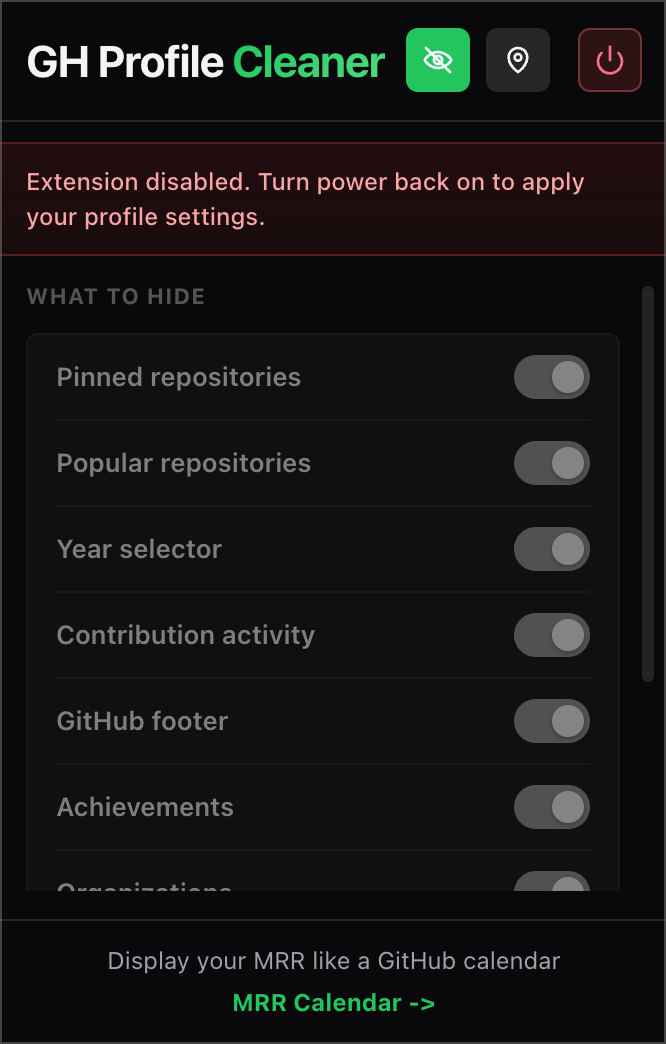
Useful when you need to see a profile exactly as others see it, or take a screenshot with everything visible, without losing your configuration.
The unboxed README
This is the feature most people do not expect.
When you have content in your profile README, GitHub wraps it in a bordered card — a README.md header row, an edit pencil, padding all around. If you embed an image, it sits constrained inside that box.
GitHub Profile Cleaner removes the box automatically. It strips the border, background, and padding from the README container, hides the header row and edit button, and expands any image to fill the full width of the column. No toggle needed — this applies whenever the extension is running.
Going further: add a revenue heatmap
You have removed what GitHub added without asking. Now the question is what to put there yourself.
Many extension users embed a revenue heatmap from MRR Calendar into their profile README. The extension already knows about it — there is a direct link at the bottom of the popup.
The heatmap uses the same grid as GitHub's contribution graph — same green squares, same week-by-week format, same color palette — but tracks revenue instead of code commits. With the unboxed README, it renders edge to edge directly above the contribution graph, same width, looking like a native part of the GitHub UI.
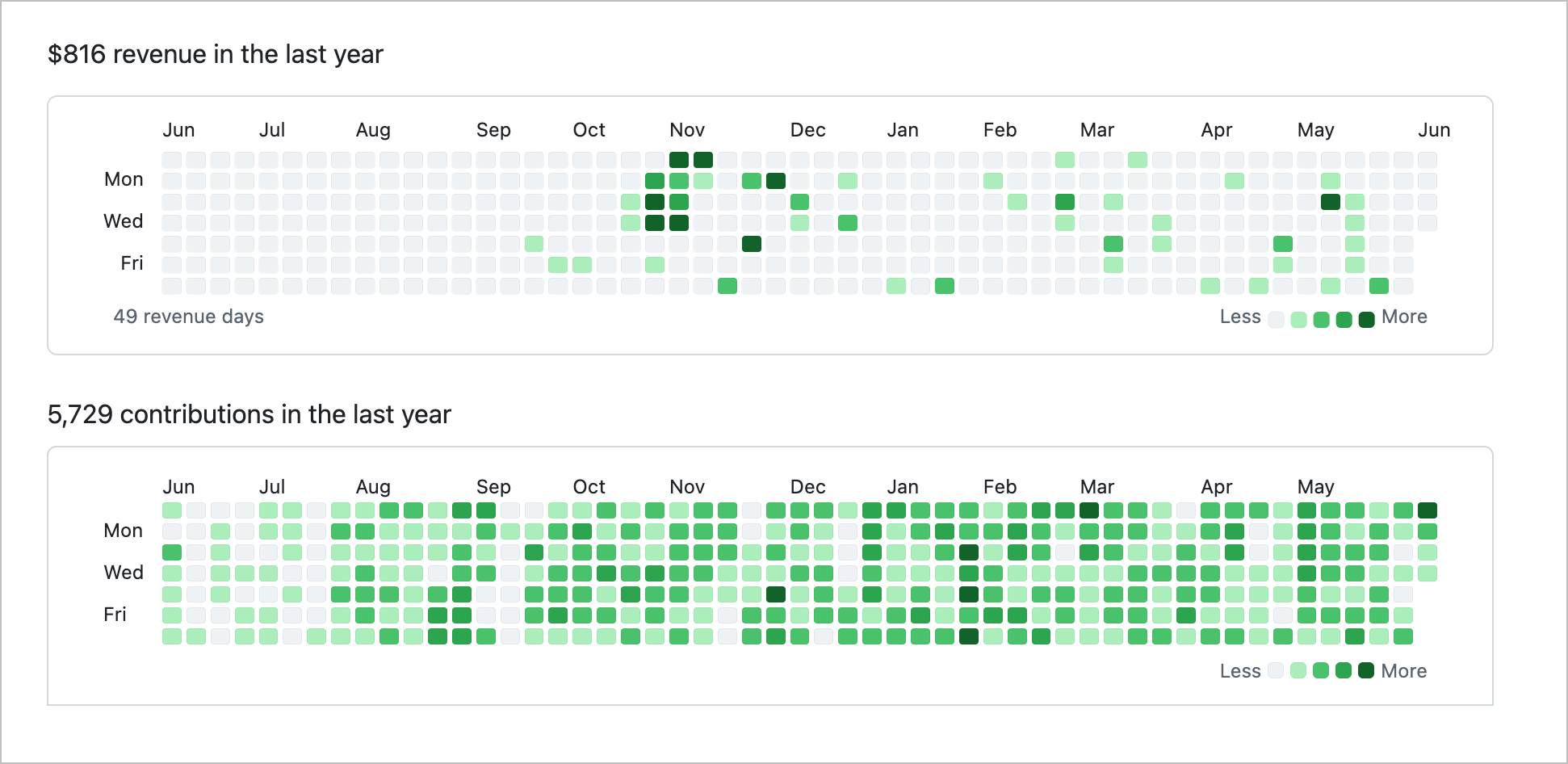
The result is two grids on your profile: one for building, one for earning. Every green square in the contribution graph is a day you shipped. Every green square in the revenue heatmap is a day someone paid you. Visitors see both together and understand the full picture without a caption.
Green squares to green dollars.